Sign in with your approved email
Go to jubal.med and choose Sign in. Enter the email address your approval was sent to, then Continue.
A one-time code arrives from signin@jubalmed.com. Enter it to sign in. No password is needed the first time.
If the code is not in your inbox within a minute, check spam, then add signin@jubalmed.com to your safe senders. Your colleagues will get their invitations from the same address.
Your trial days start the first time you sign in, not when the approval was sent.
Finish your profile
On your first sign-in a card says You're verified. A couple of details before you go in. Enter your First name and Last name, and choose a Password of 10 or more characters so you can sign in without a code next time. Then Save and continue.
On a Mac with Touch ID, or a Windows computer with Windows Hello, Jubal then offers to remember this computer. Say yes and next time you sign in with your fingerprint.
Get the desktop app
Jubal runs in any browser at jubal.med, and we recommend the desktop app for Mac and Windows for everyone who works patients every day. It does the same work on the same patients, and:
- Drop the chart from your desktop. Drag files or whole folders from Finder or Explorer, your EMR's downloads or an email straight onto a patient.
- It locks when you step away. After an hour idle it asks who is there before showing anything: Touch ID on a Mac, one click elsewhere.
- Fast with big charts. Records are kept on the computer for speed; the team's copy in the cloud is the one that counts.
- It keeps itself current. Updates download in the background.
Download it from jubal.med/download, open it and choose Sign in. It opens your browser to finish, then brings you back.
Install it for everyone who works patients every day. They sign in with the same email and see exactly what you see.
When an update is ready the app offers Relaunch now or Skip for a day. Relaunching takes about ten seconds and your work is saved; don't reopen the app yourself while it says it is installing.
Find your way around
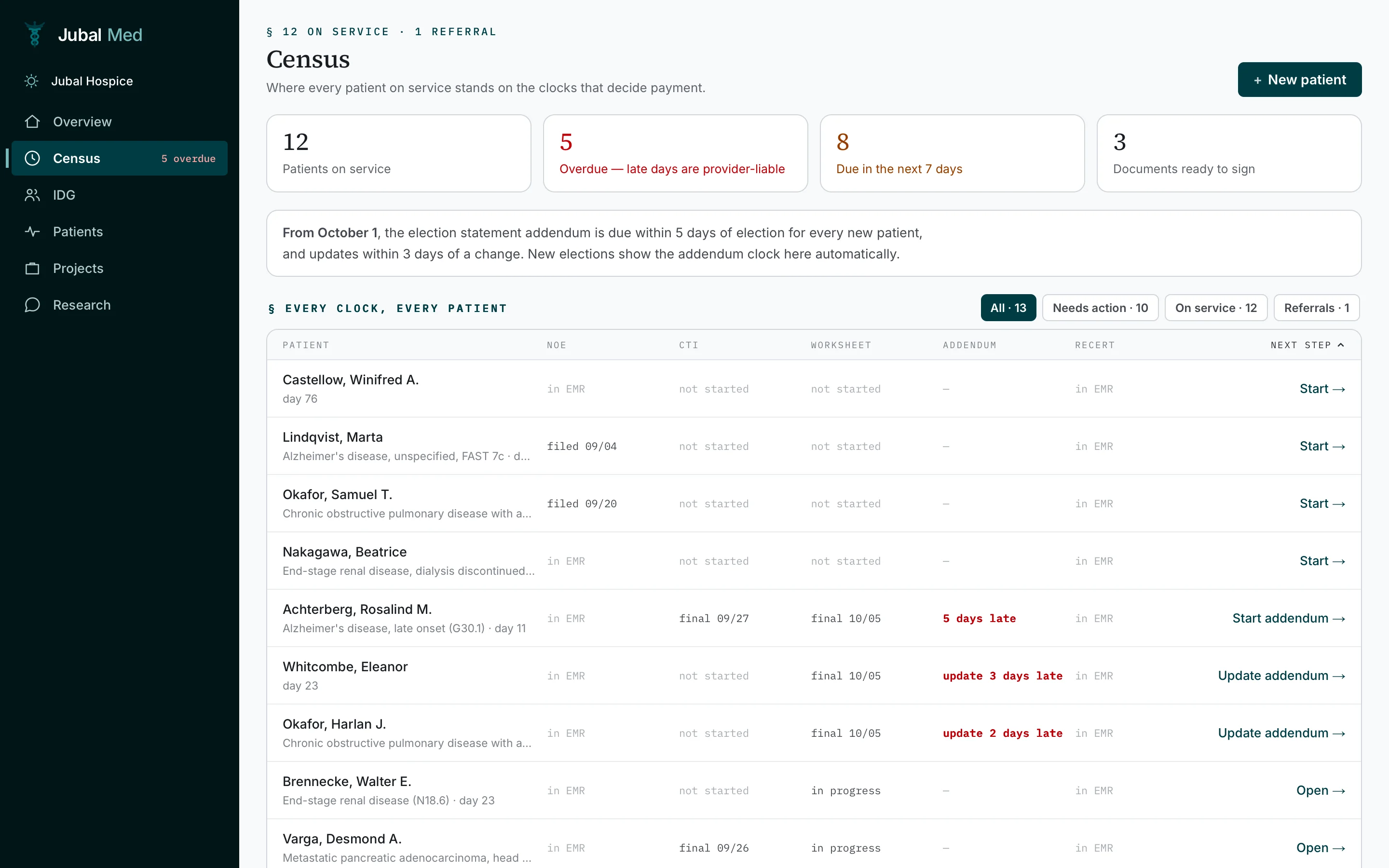
The left rail:
- Overview: your tasks, and where to pick up.
- Census: every patient on service, with the clocks that decide payment and each one's next step.
- IDG: your IDG meetings and their briefs.
- Patients: every patient, with their records, documents and deadlines. + New patient starts an intake.
- Projects: work with a folder, such as a survey response, a dispute or a policy.
- Research: quick regulatory questions not tied to a patient. A scratchpad; nothing here becomes a saved document.
Under your name at the bottom of the rail are Settings (your own account), Organization (your hospice), Help (these guides) and Sign out.
Each patient has a page with eight tabs: see The patient page, tab by tab.
You are done when…
You can sign in with your password, or your fingerprint on this computer.
The desktop app is installed and signed in.
Your name shows at the bottom of the left rail.
You know where Patients, Organization and Help are.