The patient page, tab by tab
What each of the eight tabs holds, and what you can change or start in each.
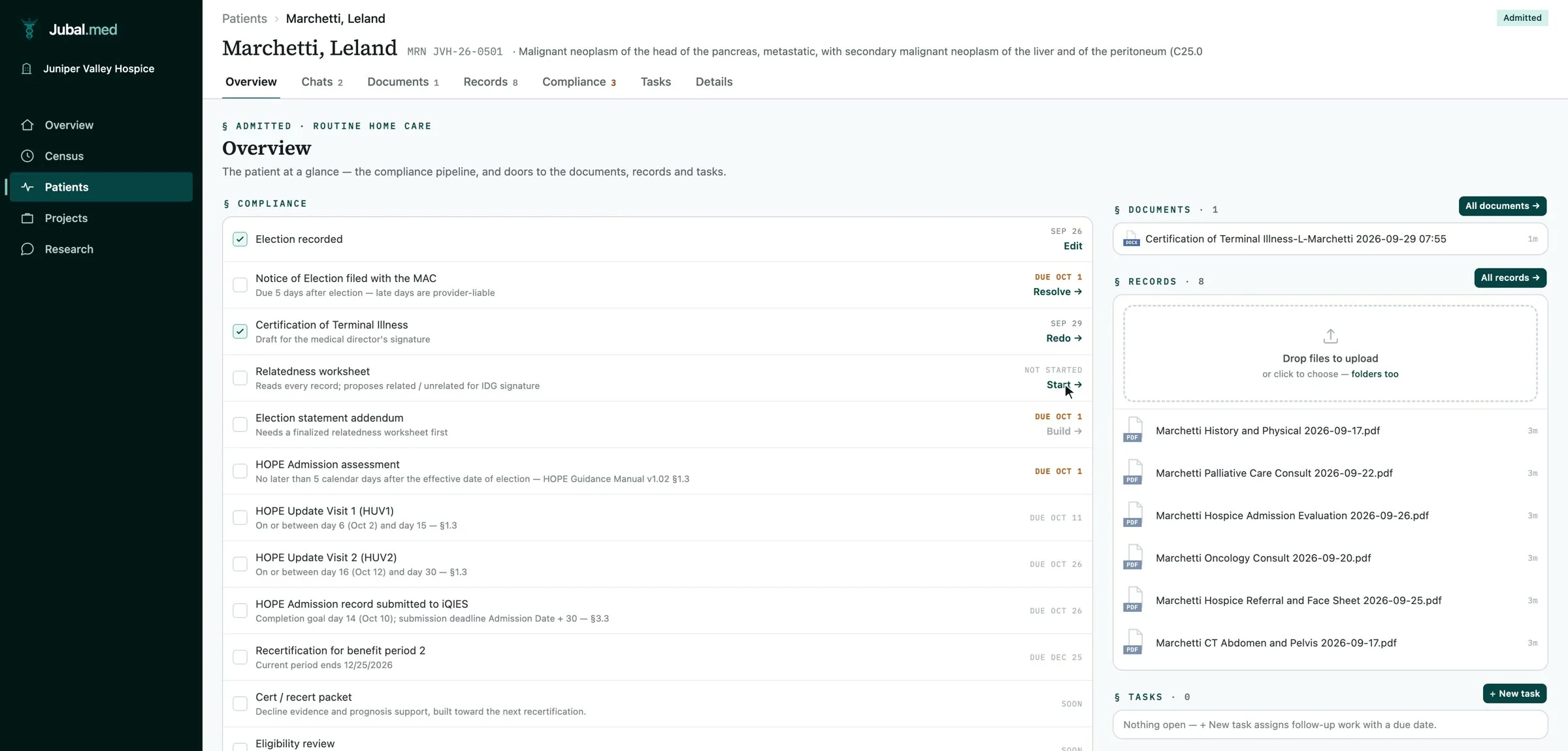
Open a patient from Patients. Under the patient's name is a row of tabs; they stay there whatever you have open. A document or record you open slides in beside the tab you are on and stays open while you move between tabs, so you can read a worksheet beside the chat that wrote it.
Overview
The patient at a glance: the compliance pipeline on the left, and doors to the patient's documents, records, medications and tasks on the right.
- Ask anything about this patient… at the bottom starts a chat about this patient. Jubal reads the records first and cites the record and page.
Chats
Every conversation about this patient, newest first. Open one and it stays inside this tab; the strip under the tabs lists the documents that chat created. Choose Chats again to go back to the list.
Documents
What Jubal has written for this patient: relatedness worksheets, certifications, addenda and the intake form. Open one to review, edit, Download as Word or Print. See Working with a finished document.
Records
Every file on the patient: the chart. Drop new files on the drop zone; each shows whether it is reading, ready or failed. Open one to read it page by page.
- A record that failed shows Retry. A scanned page takes a little longer while its text is recognised.
- New records are what the next worksheet, certification and IDG brief are built from.
Medications
The patient's one medication list, built from every record's medication list and merged into one line per drug.
- To review at the top: what Jubal suggests the team look at, and anything held for discussion. Each has Stop, Discuss or Keep.
- Below it, every medication as one line, with its relatedness (Related, Unrelated or Physician review). Open a line to see Where it is listed, and why.
- Mark stopped records a medication that was stopped; Discuss at IDG puts it on the patient's next IDG brief. Jubal suggests; the physician decides.
Compliance
The organization's compliance items for this patient: what is done, what is due and what is late, each with its clock counted from the election date.
- The statutory items are always on: Notice of Election, Certification of Terminal Illness, relatedness worksheet and election statement addendum.
- Each row starts or rebuilds its work: Start →, Redo →, Build → or Update →. A Notice of Election row has Mark filed to record the day you filed it.
- The tab shows an amber count while something is due.
Tasks
Follow-ups for the team on this patient, with an assignee, due date, priority and optional repeat. Deadlines Jubal keeps add their own tasks here. Mute emails for this patient at the bottom stops your task emails for this patient only. See Tasks and reminders.
Details
Identity, coverage and care team: what the forms print. Choose Edit details to change:
- Name: last name, and first name with middle initial.
- Hospice MRN (your EMR's number) and Referring facility MRN (with whose number it is). An MRN from intake is a placeholder; forms leave it blank until you enter yours.
- Status: referral, admitted, discharged, revoked or deceased. To close a patient without deleting them, set discharged, revoked or deceased.
- Election date and Benefit period at admission (and the day that period began, if it is not period 1).
- Level of care and Location of care.
- Terminal diagnosis and its ICD-10-CM code.
- The care team: Attending physician, Medical director, RN case manager, Social worker and Chaplain, picked from your team or typed.
- The patient's IDG team.
Date of birth and Medicare MBI come from the intake and show here.
What moves a deadline: the election date starts the Notice of Election, recertification and face-to-face clocks; the benefit period sets which period the patient is in; setting the status to admitted starts the compliance clocks. Without an election date, Details says No clocks running.